
- Projector lessonsInteractive lessons split into 50-minute parts, with a revision sheet for every unit.
- Worksheets and testsWord files for Teams and PDFs for printing, with mark schemes for teachers only.
- Progress for each classMark each unit working on or covered for every class you teach.
Every unit, ready to teach
Cambridge A Level Computer Science (9618), Cambridge IGCSE Computer Science (0478), a bank of KS3 Computing units for Years 6 to 9, and Pearson Edexcel Mathematics test sets. Each unit keeps its lesson, revision sheet, worksheet, topic test and mark schemes together.
- Topics fold open; search by any word
- Word files to edit or share on Teams, PDFs to print
- End of Unit Tests with their mark schemes
- Course resources: syllabus links and cheat sheets
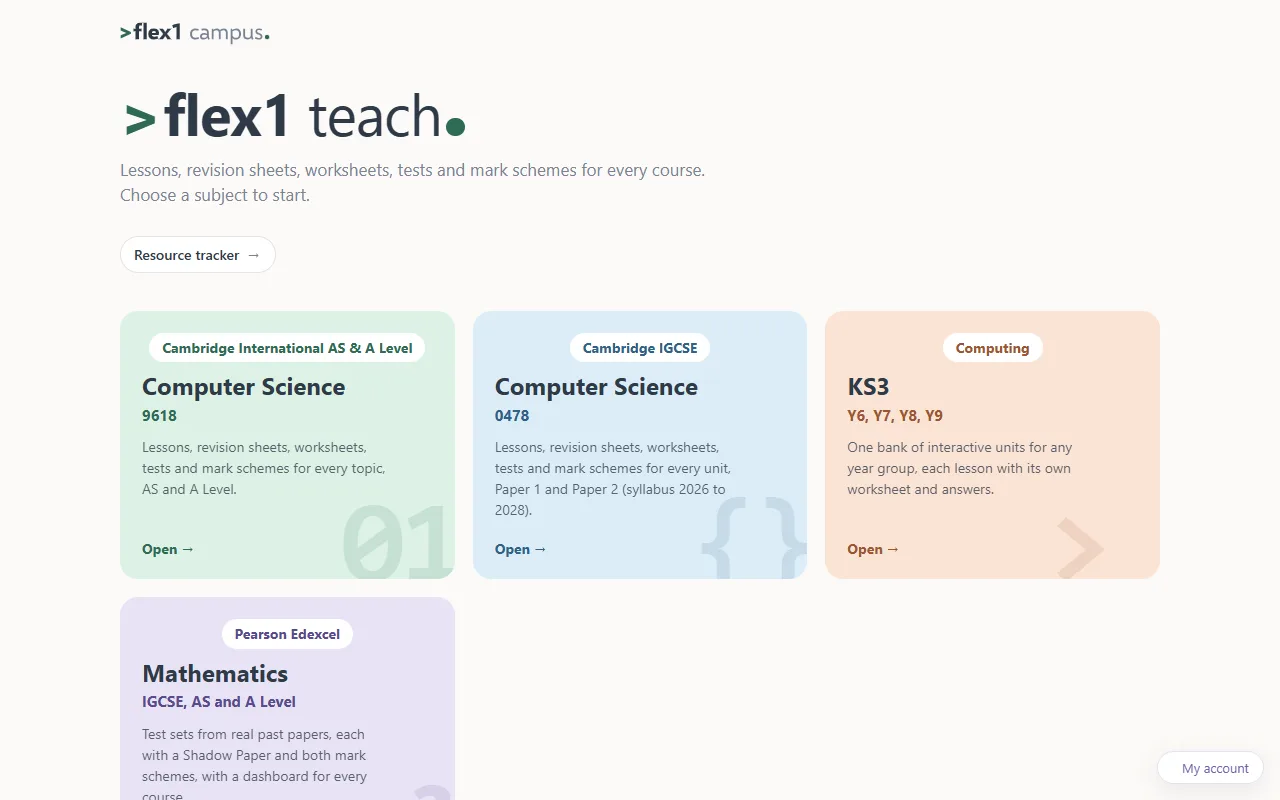
Lessons built for the front of the room
Interactive lessons in 50-minute parts: a starter, objectives and key words, then explanations, tasks, true or false, an exit ticket and exam-style questions. Teacher mode shows the timings and the plan; Present goes full screen.
- L1, L2 and so on: jump to any lesson of a unit
- Teacher notes with timings, hidden from students
- Key words with their Chinese translation
- Students can open the same lesson afterwards

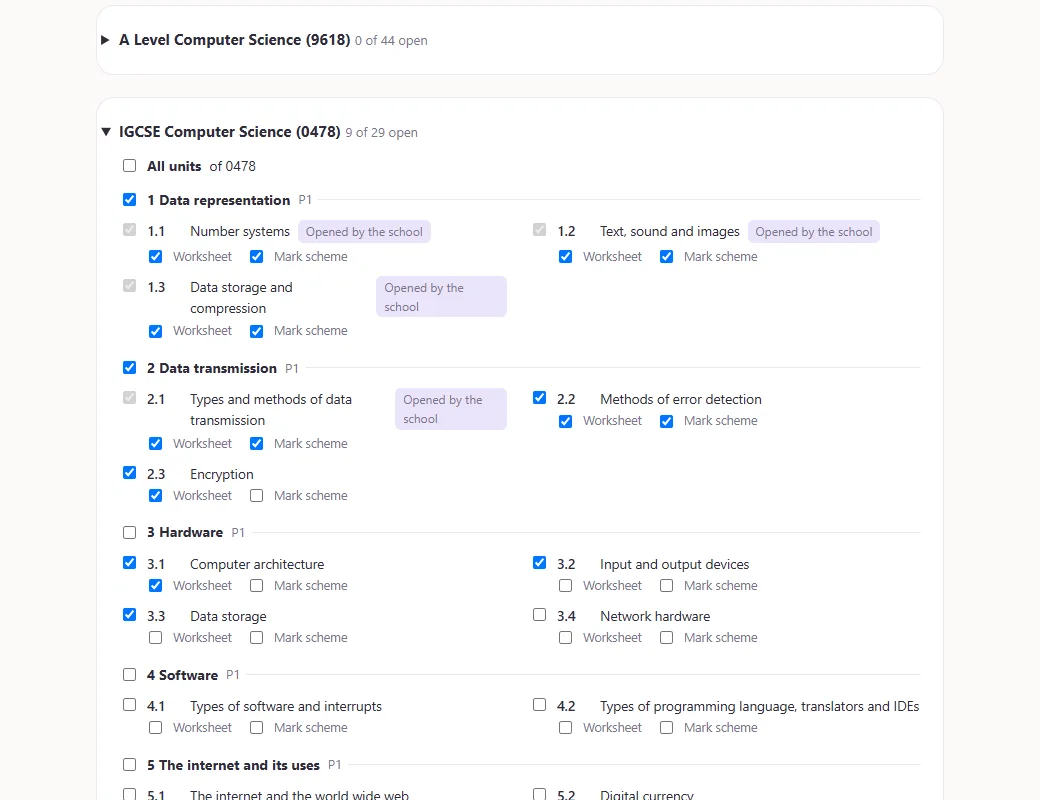
Open units for each class, release work when you are ready
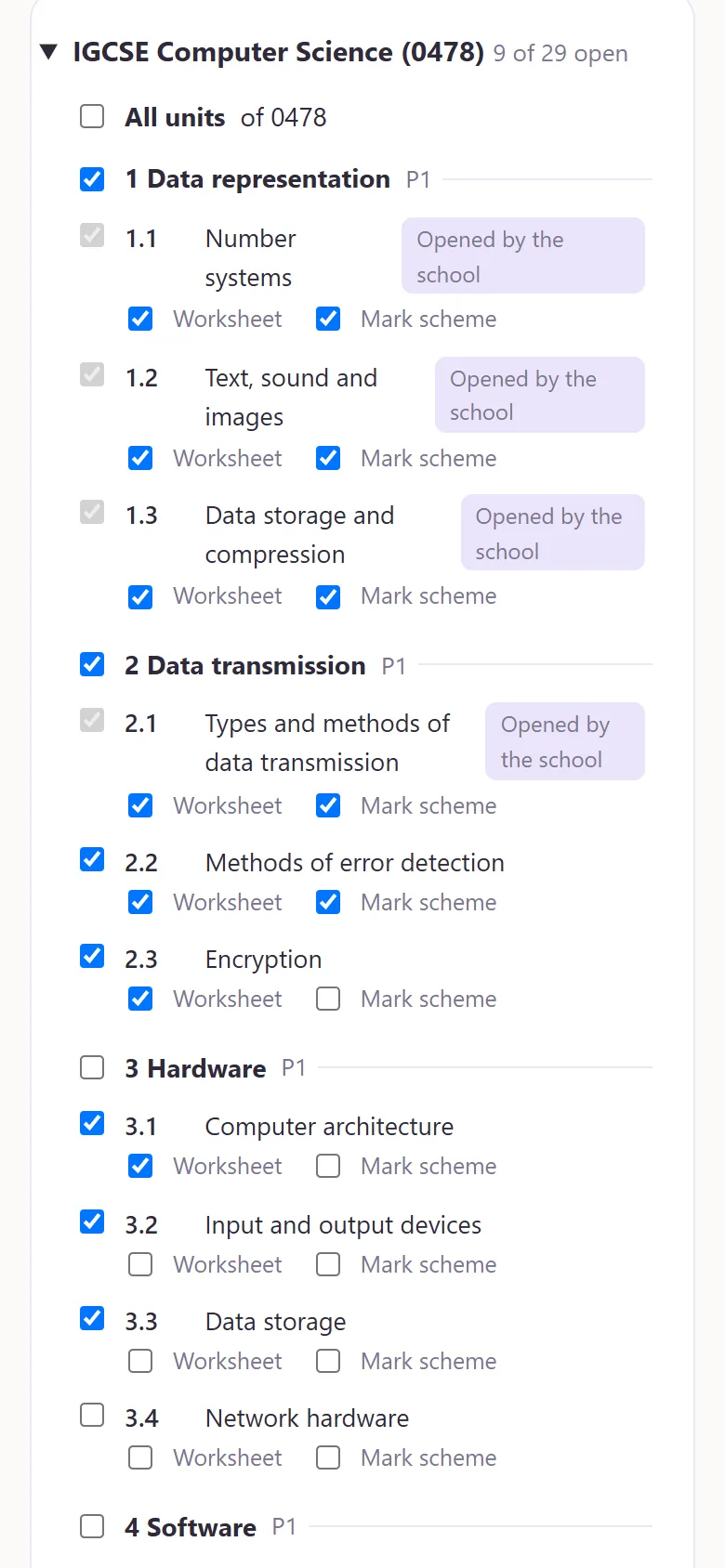
In Settings, tick the units each class may open. For 9618 and 0478, release the worksheet, then its mark scheme once the work is in. Add your classes from your timetable file, and name-only pupils for classes without logins.
- Units opened by the school stay open
- Worksheet and Mark scheme switches for every unit
- Copy the units from another class
- Name-only pupils for lists and seating plans
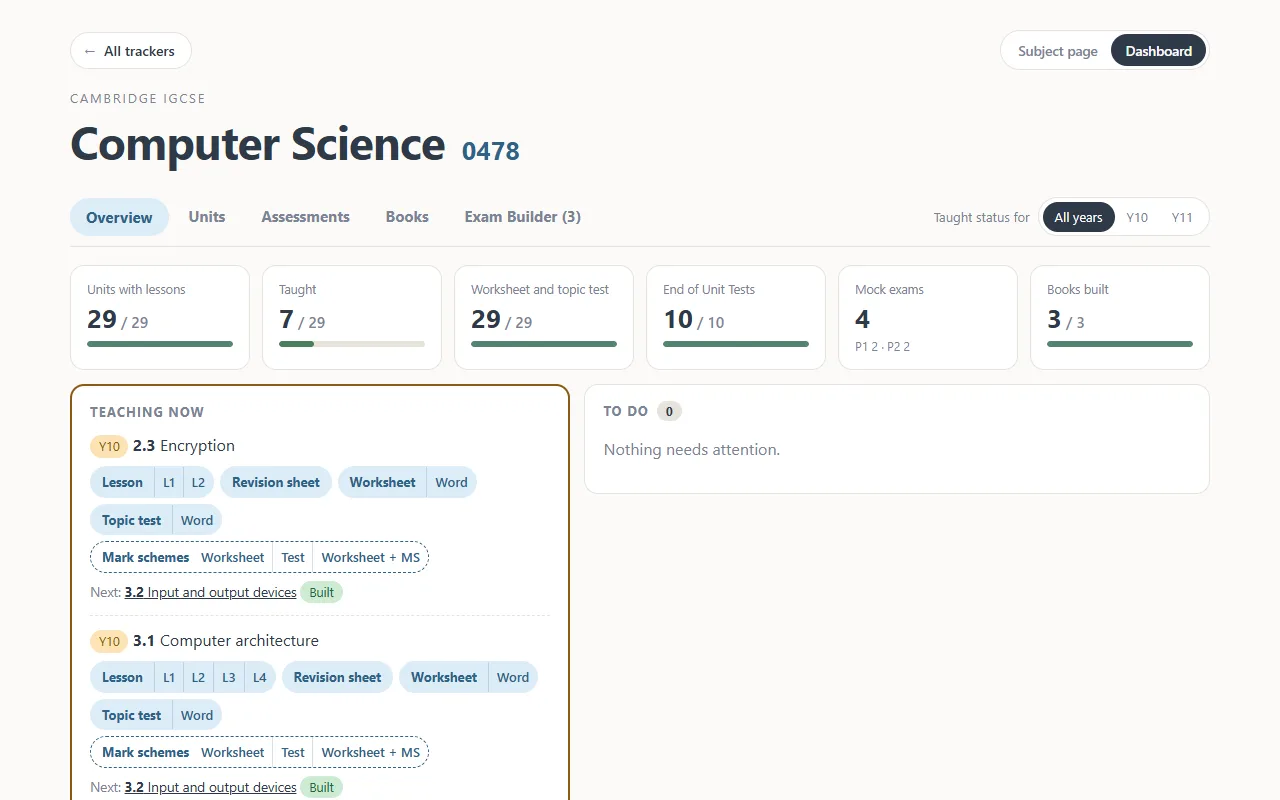
The whole course at a glance
Each course has a dashboard beside its subject page: units with lessons, units taught, worksheets, tests and mock exams, and what you are teaching now with every file one click away. Choose a class under "Progress for" on the subject page and click a unit to mark it working on or covered.
- Teaching now, and what comes next
- Progress for each of your classes, which flex1 planner keeps up to date
- An Exam Builder tab with your tests from flex1 exam builder
- One switch between the subject page and the dashboard
See how confident every student feels
Students rate each unit and can ask for help. The school's administrator sees each class as a heatmap, unit by unit, can download it as a spreadsheet, and gets an email for every help request.
- Not yet, Getting there and Confident for every student and unit
- Help requests with the student's note
- A CSV download of the heatmap
- Who has not signed in for two weeks

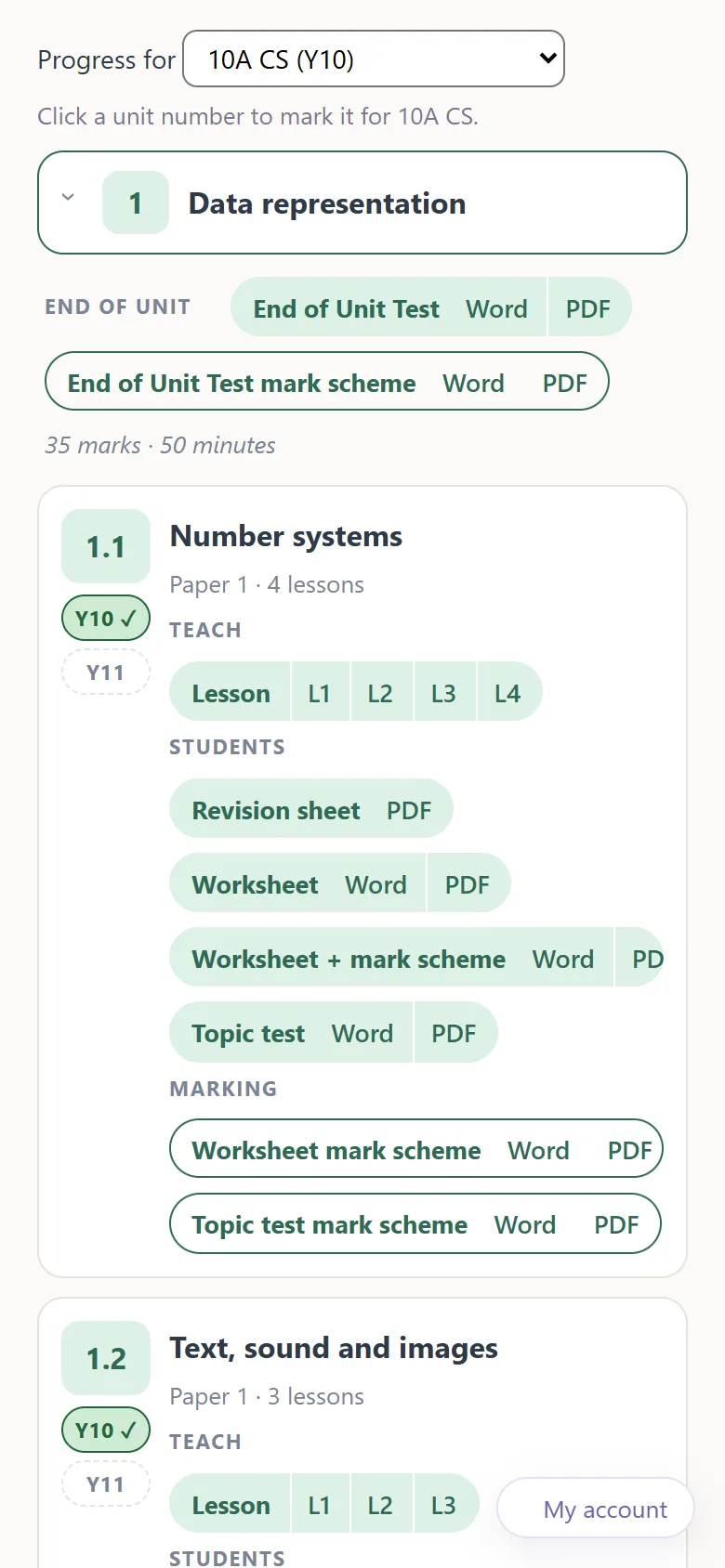
Check a unit between lessons
Course pages, files and class settings all work on a phone.
Easy on the eyes after dark
Every page has a light and a dark look. Pages are light unless you choose Dark, or Auto to follow your device, in My account.

Everything in flex1 teach
- Four courses9618, 0478, KS3 Computing and Mathematics, with the courses you teach open to you.
- Projector lessonsIn 50-minute parts, with teacher notes and full screen.
- Revision sheetsOne for every unit, as PDF.
- Worksheets and topic testsWord and PDF, with mark schemes.
- End of Unit TestsFor each syllabus topic, with mark schemes.
- Mock exams and revision packsOn the course dashboard.
- Course resourcesThe syllabus and pseudocode guide, and cheat sheets.
- Progress for each classWorking on or covered, unit by unit.
- Release workWorksheets, then mark schemes, class by class.
- Classes from your timetableRead an Excel or CSV export, with a preview first.
- Name-only pupilsNames without logins, for lists and seating plans.
- Exam Builder tabYour tests from flex1 exam builder on each dashboard.
- Protected lessonsStudents see their name on each page and cannot print or copy.
- Chinese key wordsIn every lesson, one tap away.
Questions
Who can use flex1 teach?
Teachers approved by the school's administrator. Create an account with your school email and ask for access; the administrator chooses which courses you can open.
Can students see the tests and mark schemes?
No. Students see lessons and revision sheets, and worksheets and mark schemes only when you release them for their class, as web pages with their name on. Word and PDF files and all tests are for teachers only.
Where do the past-paper questions come from?
Cambridge past papers (© UCLES), used for teaching and for Flex1 Campus users only. Questions marked "teacher-written" are original.
Do I need flex1 planner too?
No. Each works on its own. Together, ticking a lesson taught in the planner moves your class's progress in flex1 teach.
Teach your next lesson from here
Sign in, or create an account with your school email and ask for access.