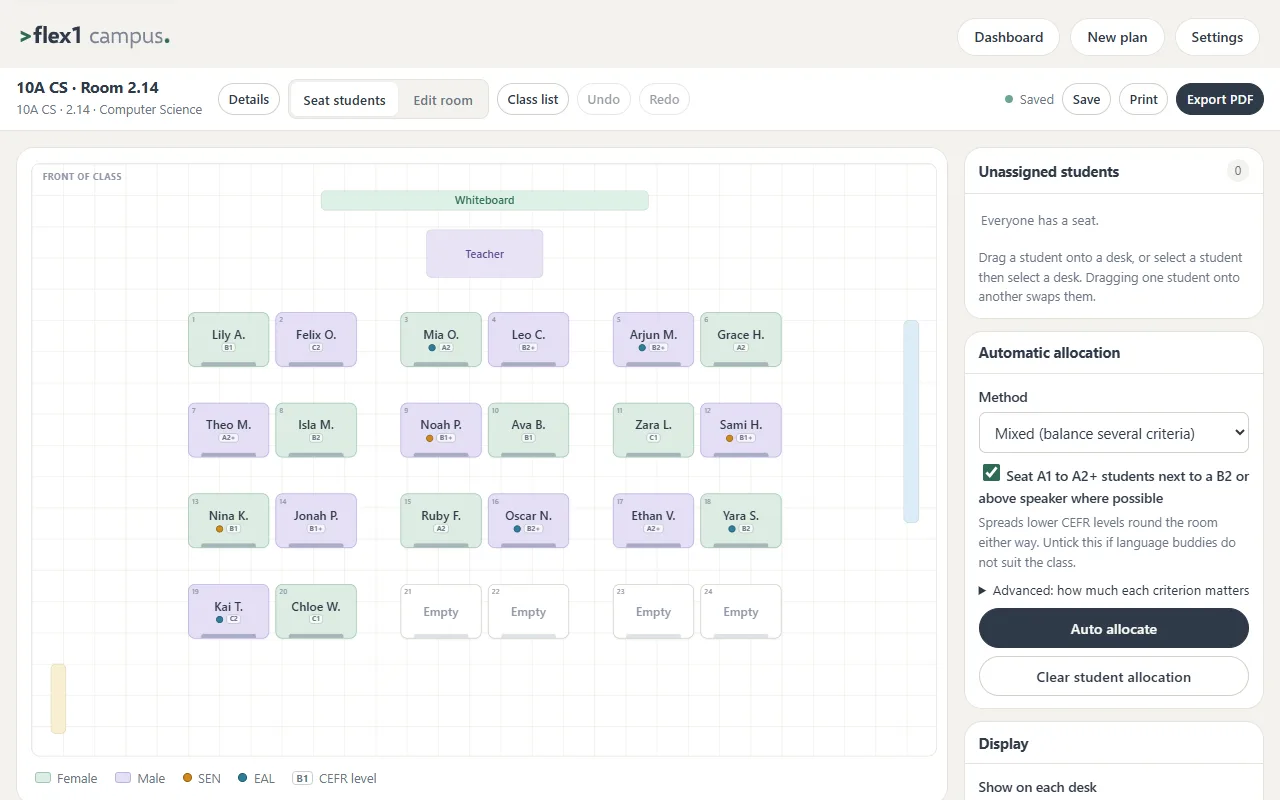
- Plans by algorithmSeats chosen around gender, SEN, EAL and CEFR levels, so every table works.
- Your room, your wayStart from a grid, rows, a U-shape or a computer lab, then move any desk.
- Print and PDFPrint a clean plan for the classroom, or save it as a PDF in A4 or A3.
From class list to plan in three steps
Choose one of your classes and the room, pick a layout, then add the class list: press "Add the names" to bring in your class from Flex1 Campus, upload an export from your school system, or type the names in.
- Start from one of your Flex1 Campus classes
- Upload an .xlsx export (such as iSAMS) or a CSV
- Gender, SEN, EAL and CEFR level for each student
- More students than desks? It offers to add them

Draw the room once, use it all year
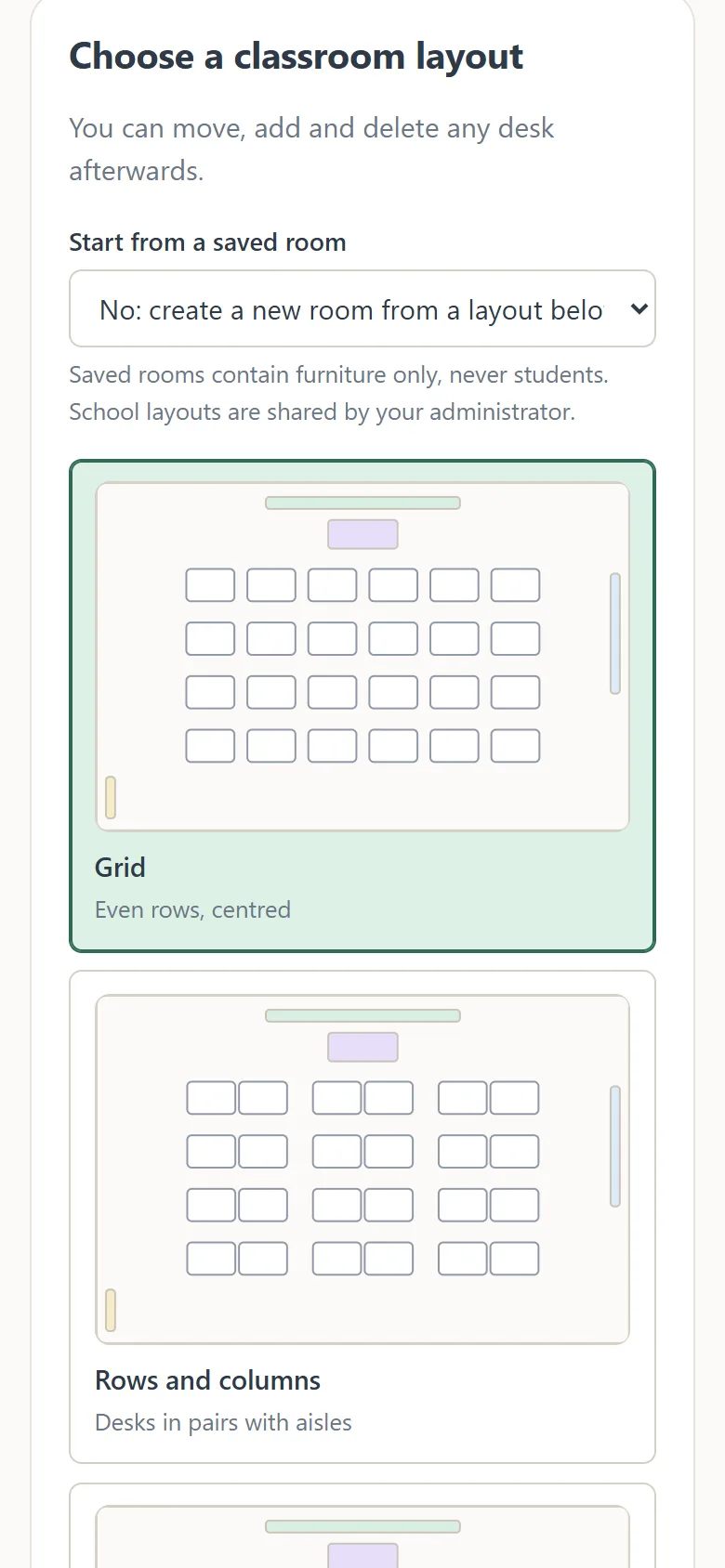
Start from a grid, rows and columns, a U-shape or a 20-seat computer lab, or from an empty room. Add desks, computers, the board, the teacher's desk, doors and windows; rotate, label and renumber. Save the room and use it for every class.
- Five layouts to start from
- Desks, chairs, computers, board, door, window and cupboard
- Save a room for next time
- School layouts shared by your administrator

Let the algorithm do the seating
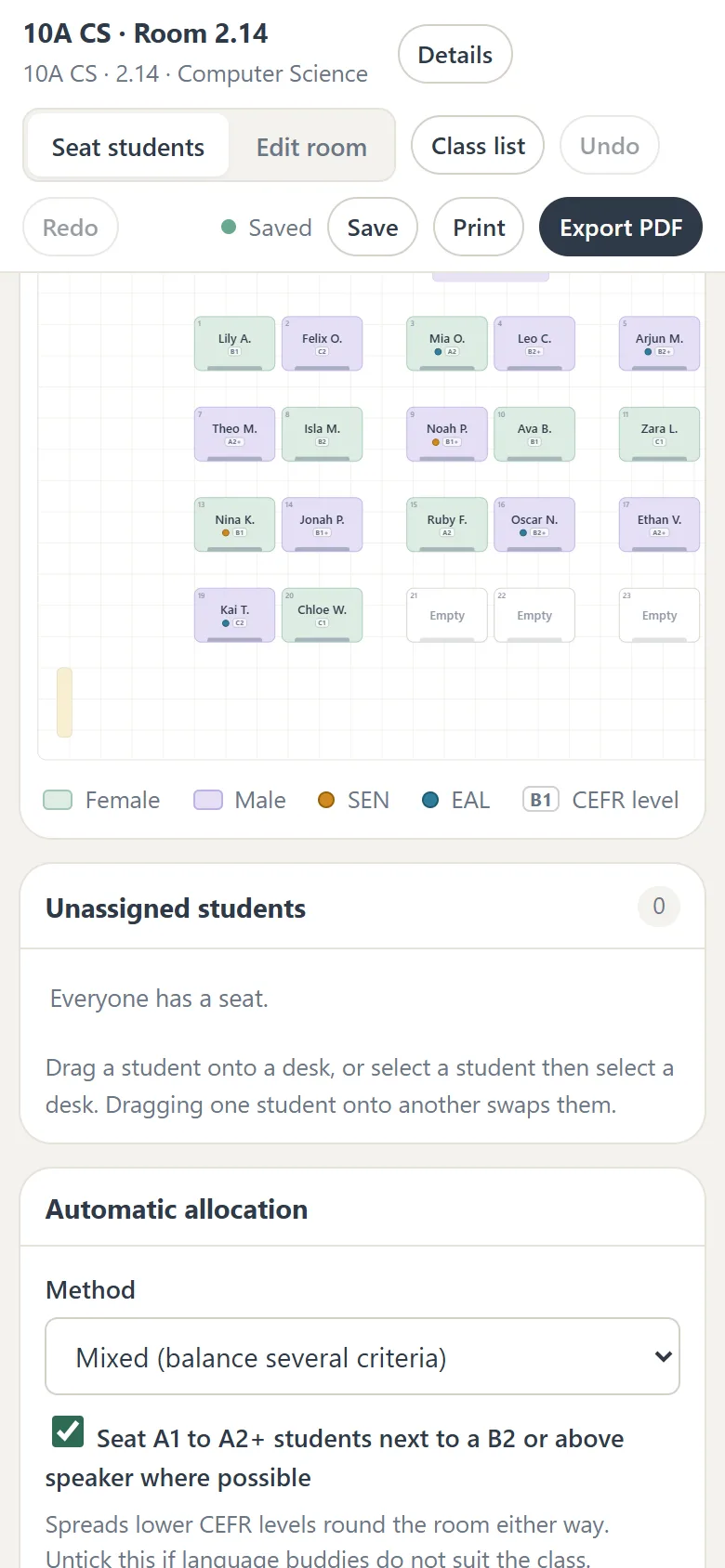
Choose Mixed and it balances gender, SEN, EAL and CEFR levels at once, keeps SEN students near the front and seats students at A2+ or below next to a B2 or above speaker where it can. Or spread by one of them, or seat alphabetically or at random. Then drag any student to change it.
- Mixed, gender, SEN, EAL, CEFR, alphabetical or random
- Advanced: say how much each one matters
- Drag and drop, or click a student then a desk
- Undo and redo, and a reminder to save
Print it, save it, pass it on
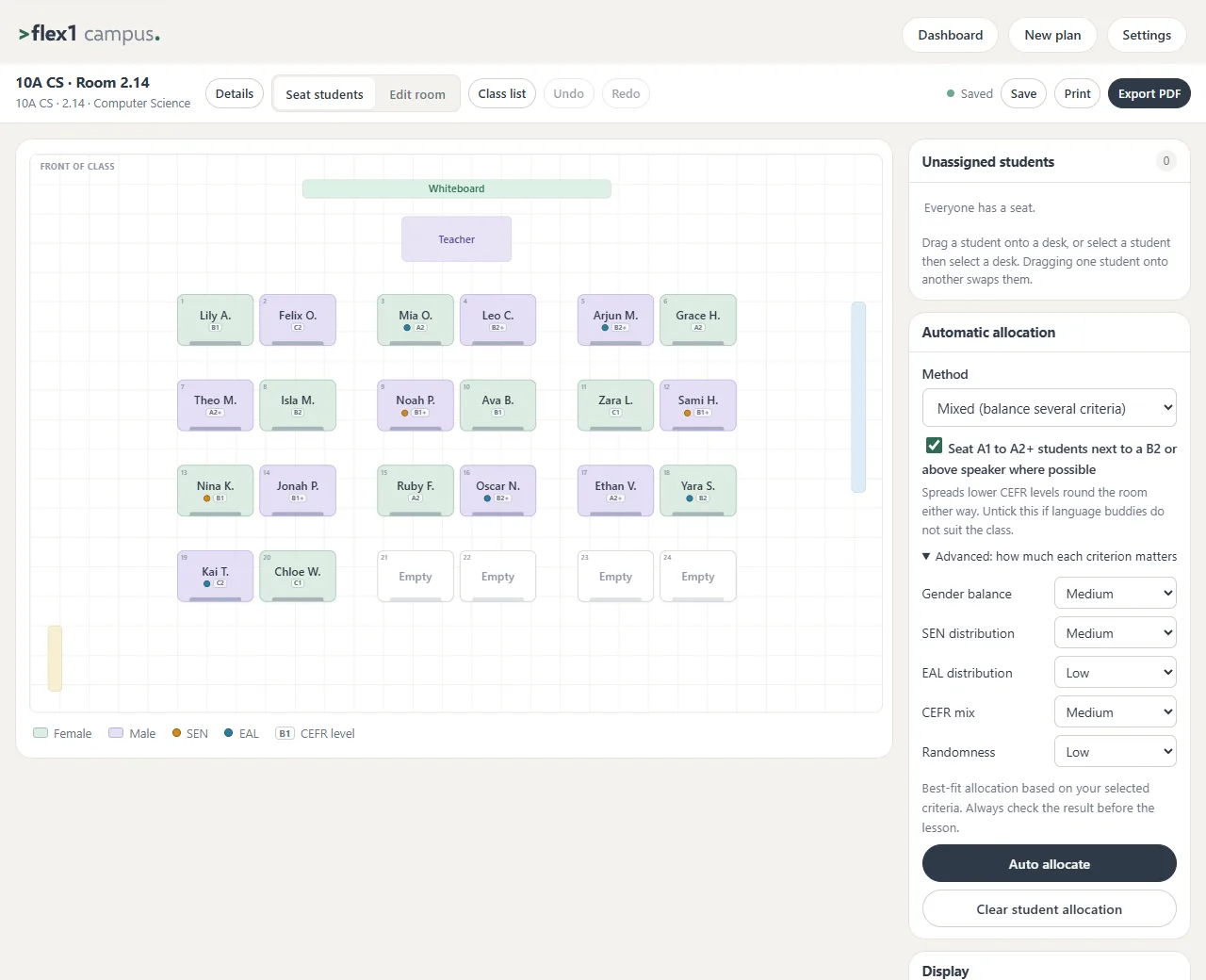
Print a clean plan for the classroom wall, with names only, or with the SEN, EAL and CEFR markers for you. Export a PDF in A4 or A3, portrait or landscape, with your notes. Duplicate a plan for next term, or export a plan file for a colleague to import.
- Names only, names and gender, or every marker
- Pastel, Simple, High contrast or Monochrome
- The front of the room at the top, bottom or either side
- Export and import plan files
Every class in one place
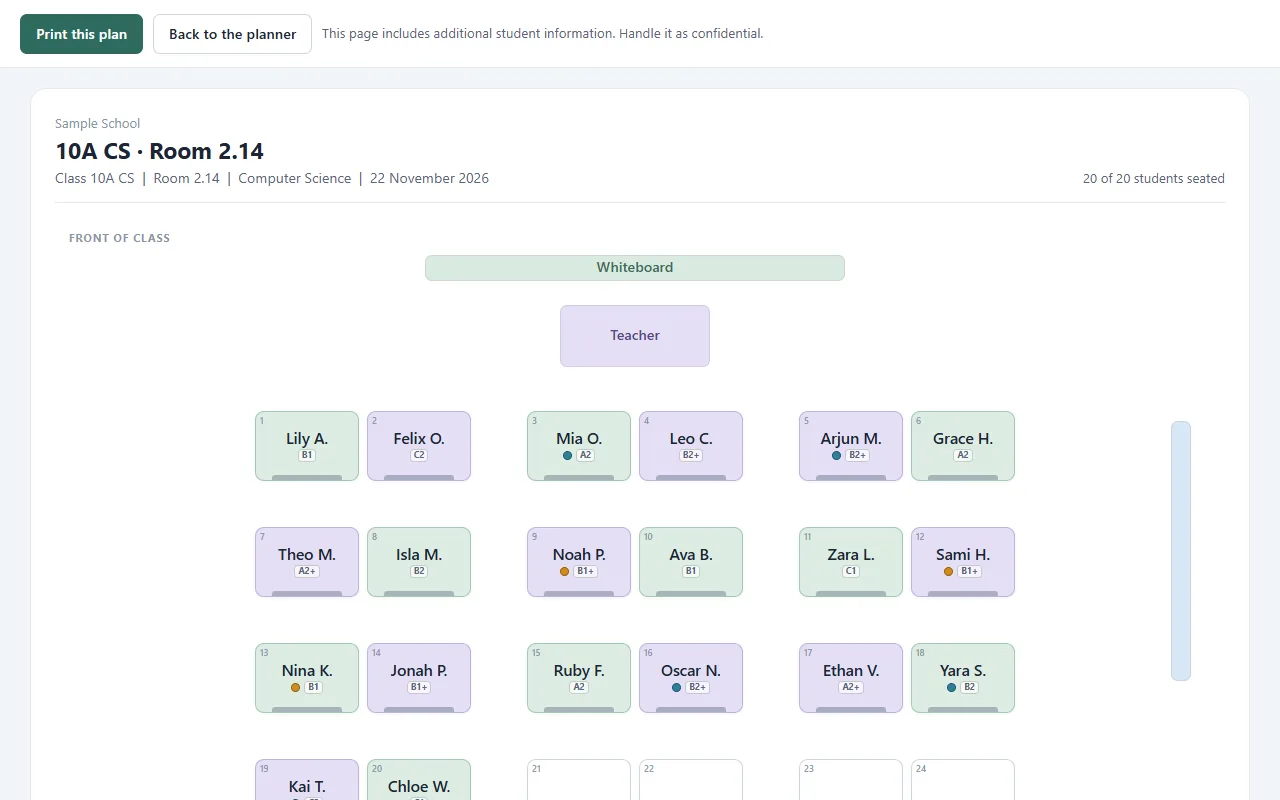
Your plans and rooms are on one page: open, duplicate, rename, export or delete a plan, start a new one, or download the class list template. Settings shows your saved rooms and the school's layouts with a picture of each.
- Up to 300 plans
- A count of students, seats and seated students for each
- Saved rooms with a picture of each
- A CSV template for class lists
Check the plan at the door
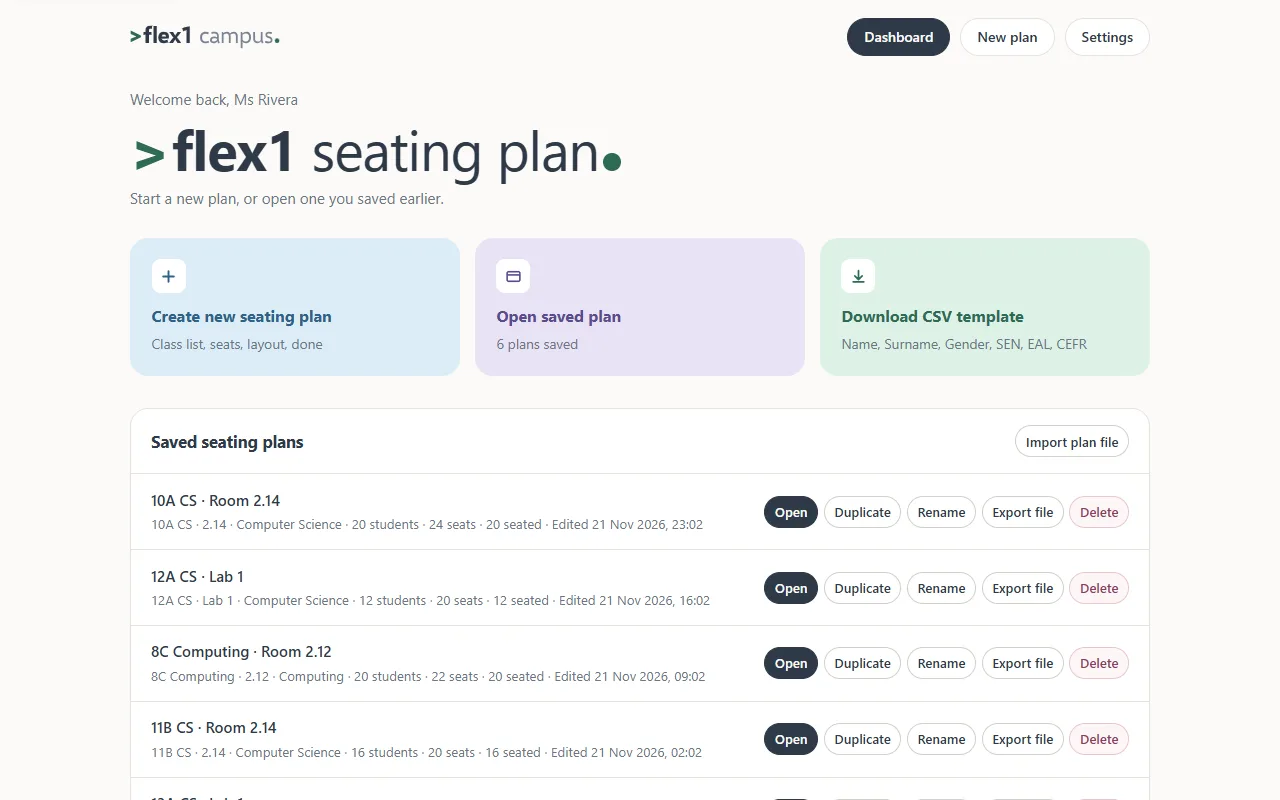
Your plans open on a phone too, so you can check who sits where as the class comes in.
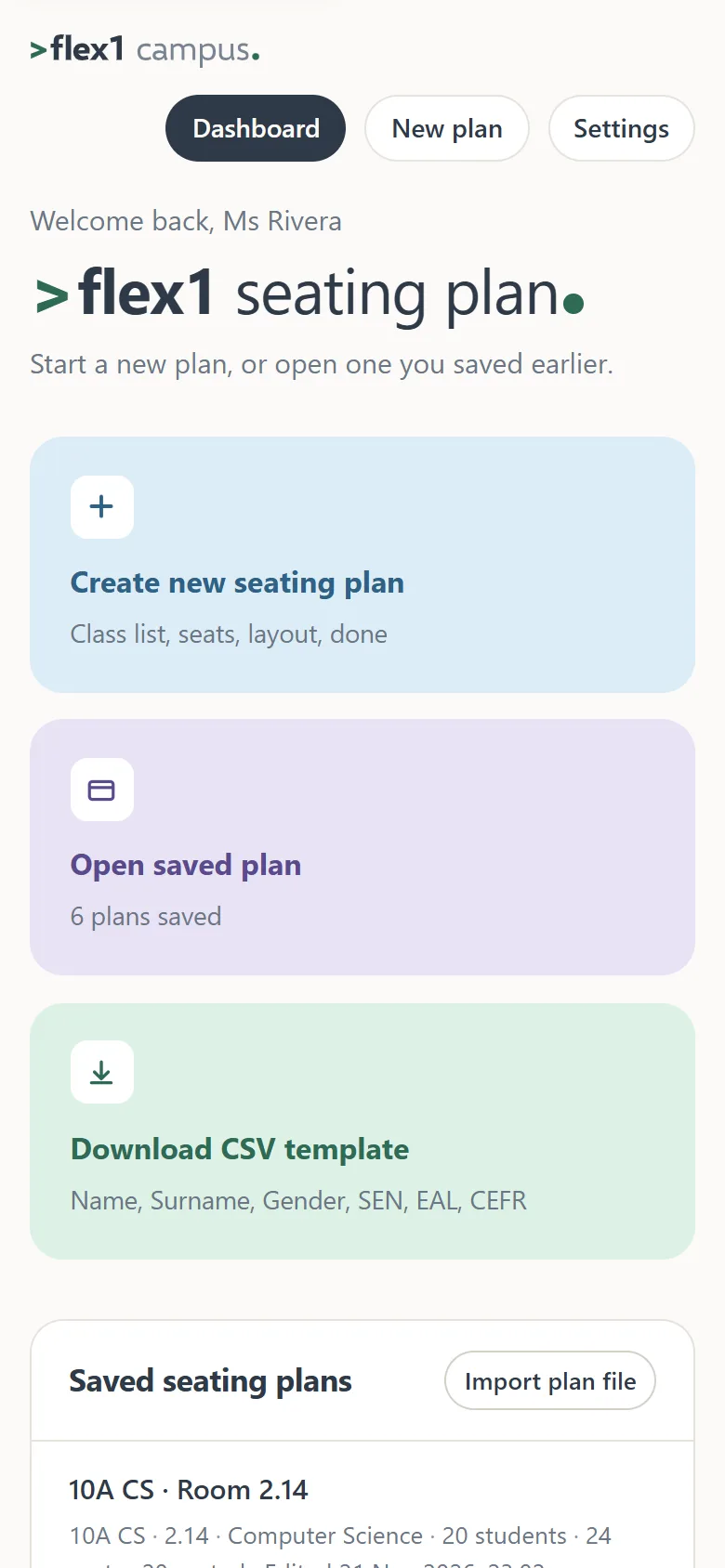
Light or dark
Pages are light unless you choose Dark, or Auto to follow your device, in My account. The classroom drawing itself stays light, like paper, because that is what gets printed.

Everything in flex1 seating plan
- Three stepsPlan details, room and seats, class list.
- Your Flex1 Campus classesStart a plan from a class and add its names in one press.
- Class list uploadAn .xlsx export from your school system, or a CSV.
- Five layoutsGrid, rows and columns, U-shape, computer lab or an empty room.
- Room editorDesks, computers, board, door, window and cupboard.
- Saved roomsFurniture only, never students.
- School layoutsShared by your administrator with every teacher.
- Auto allocateMixed, or spread by gender, SEN, EAL or CEFR level.
- Language buddiesA2+ or below next to a B2 or above speaker.
- Drag and dropSwap two students by dropping one on the other.
- Undo and redoAnd Ctrl+S to save.
- Four stylesPastel, Simple, High contrast and Monochrome.
- PrintNames only, unless you choose the markers.
- PDFA4 or A3, portrait or landscape, with your notes.
- DuplicateNext term's plan from this term's.
- Plan filesExport a plan, and import one from a colleague.
Questions
Who can use flex1 seating plan?
Teachers. Create an account with your school email and ask for access to flex1 seating plan; your administrator approves it.
Who sees the SEN, EAL and CEFR details?
Only you. They stay in your plan and never go to the rest of Flex1 Campus, and a printed plan shows names only unless you choose the markers.
Do I have to type the names?
No. Start the plan from one of your classes and press "Add the names", or upload the class list exported from your school system.
What if a student joins the class later?
Press "Update names from the class": new students are added, and students who have left are pointed out, never removed by surprise.
Make your first plan
Sign in, or create an account with your school email and ask for access.