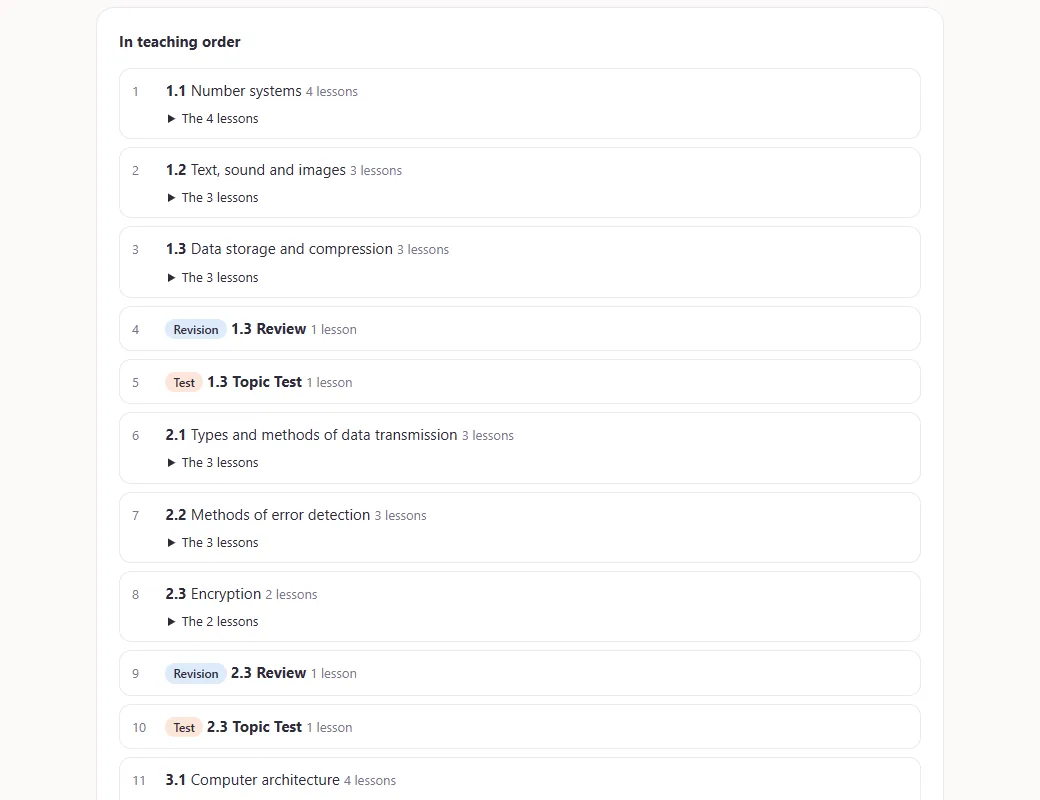
- Schemes of workUnits from flex1 teach or your own, in teaching order, with tests, revision and spare lessons.
- Real datesHolidays, events and Week A or B are taken into account, so every lesson has its date.
- Finish in timeA check for each class: how many lessons it has left before the deadline, and how many it needs.
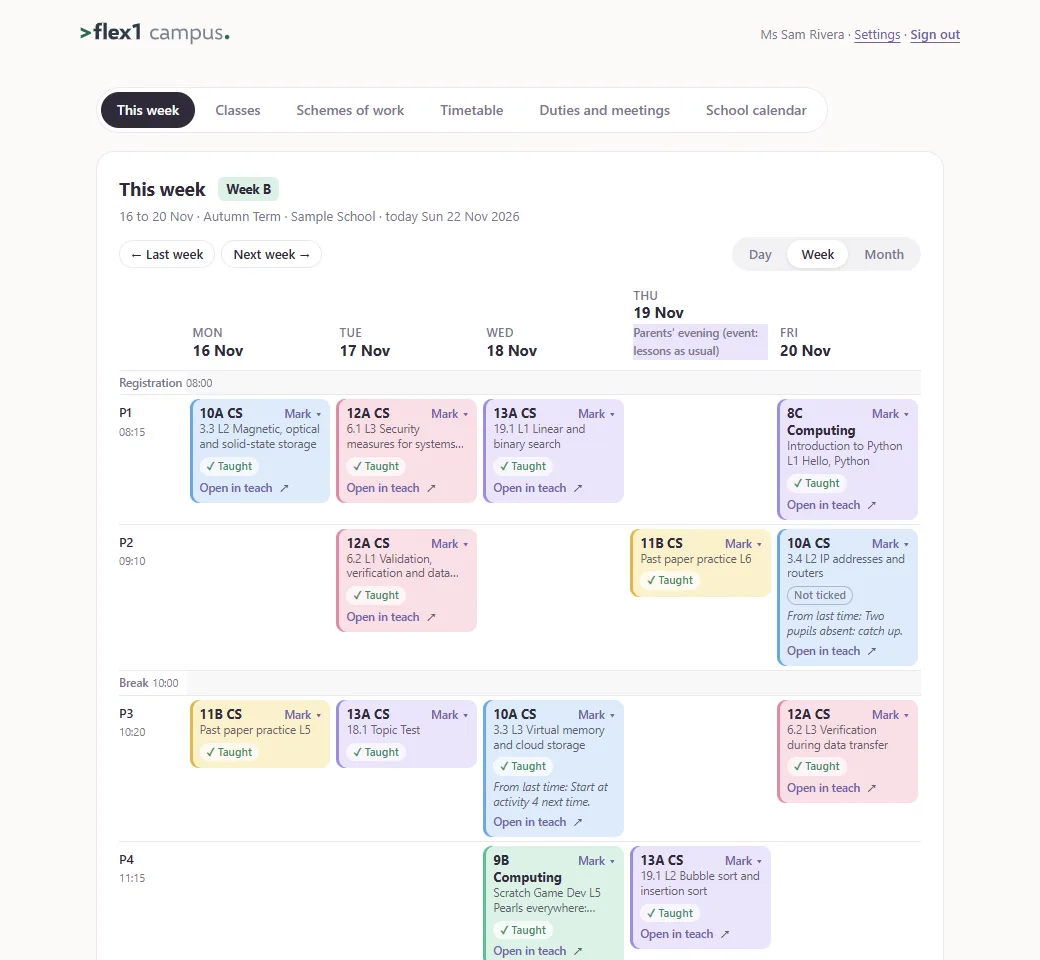
- Your weekYour lessons, duties, meetings and clubs on one page, with clashes marked.
- For teachers on the school's staff list.
One calendar for the whole school
Your administrator enters the school year once: terms, holidays, INSET days, events that stop lessons for some year groups only, and extra school days. Week A and Week B are worked out for you, even across holidays.
- Month by month, with each week's letter
- Events that stop lessons for chosen year groups, such as Y11 mocks
- Dates pasted straight from the school calendar
- Last year copied to start the next

Build a scheme of work in minutes
Add a flex1 teach topic and its lessons fill in by themselves, with a topic test and a review lesson after each topic if you like. Add your own units, tests, revision and spare lessons, then set a deadline and milestones.
- Units from 9618, 0478 and KS3, or your own
- Filled from the syllabus, or from a Word scheme of work (0478 and KS3)
- Move, copy or duplicate whole units
- School schemes shared by subject; yours stay private
Every lesson on its real date
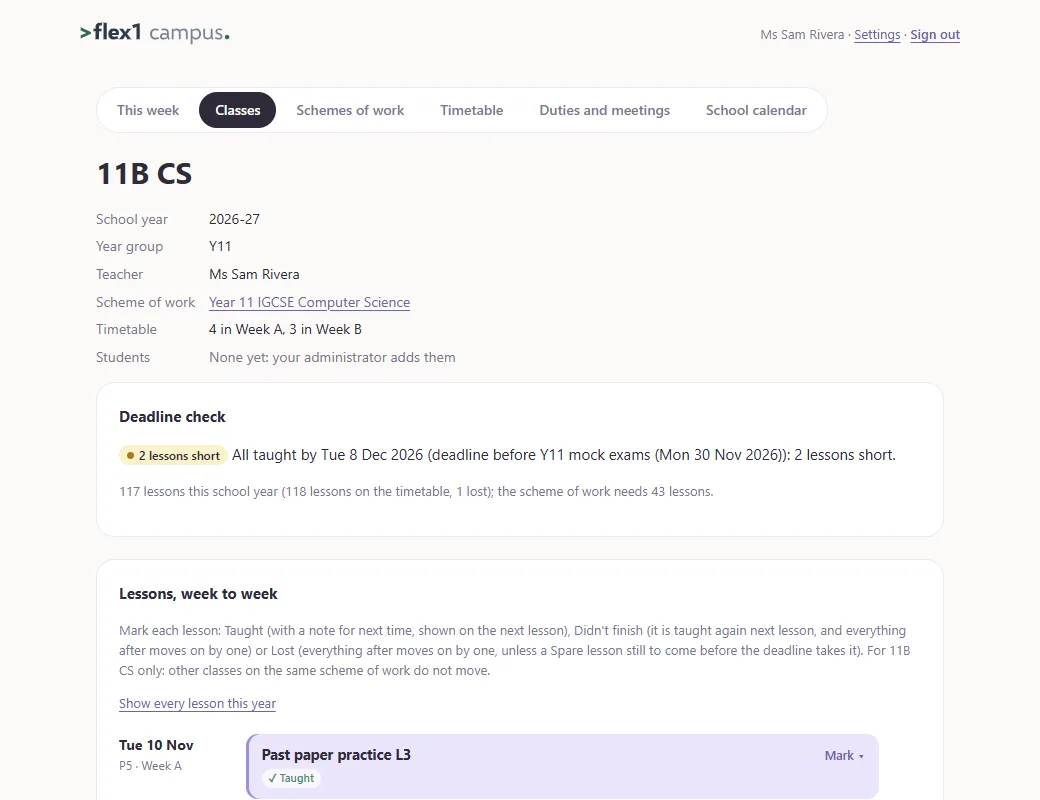
Put your timetable in once, by pasting lines or reading the school system's Excel or CSV export, and every class gets its lessons on real dates. The deadline check says plainly whether the class will finish in time, and by how many lessons.
- "All taught by 8 Dec: 2 lessons short", in words, never colour alone
- Week A and B, classes taught together, a late first lesson
- Change one lesson, or the timetable from a date
- Warnings for two classes at once or a lesson on a duty
Tick it taught, and the plan keeps up
Mark each lesson Taught, with a note for next time, or Didn't finish, and everything after it moves on. A lesson lost to a trip or cover uses up a spare lesson first, so the deadline holds. Each tick moves the class's progress in flex1 teach forward.
- Notes for next time appear on the next lesson
- Lost lessons with a reason; extra lessons for catch-up
- "Open in teach" goes straight to the lesson
- Day, Week and Month views

Your whole week, not just your lessons
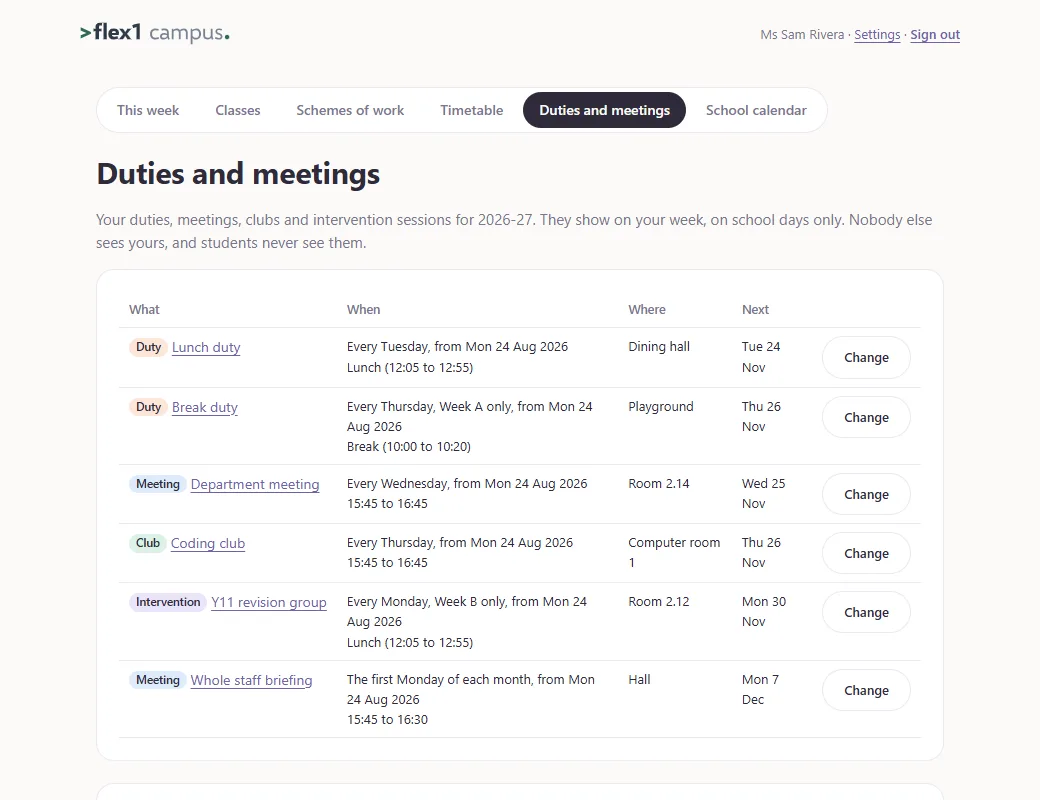
Add duties, meetings, clubs and interventions that repeat every week, in Week A or B only, every few weeks or once a month. They sit in your week next to your lessons, with clashes marked. Your administrator can paste the duty rota for everyone.
- On a slot such as Lunch, or between two times
- Cancel or move a single date
- Set by the administrator for everyone, or by you
- Only you see yours; students never do
Your week in your pocket
On a phone, the week becomes an agenda: tick lessons as you go.
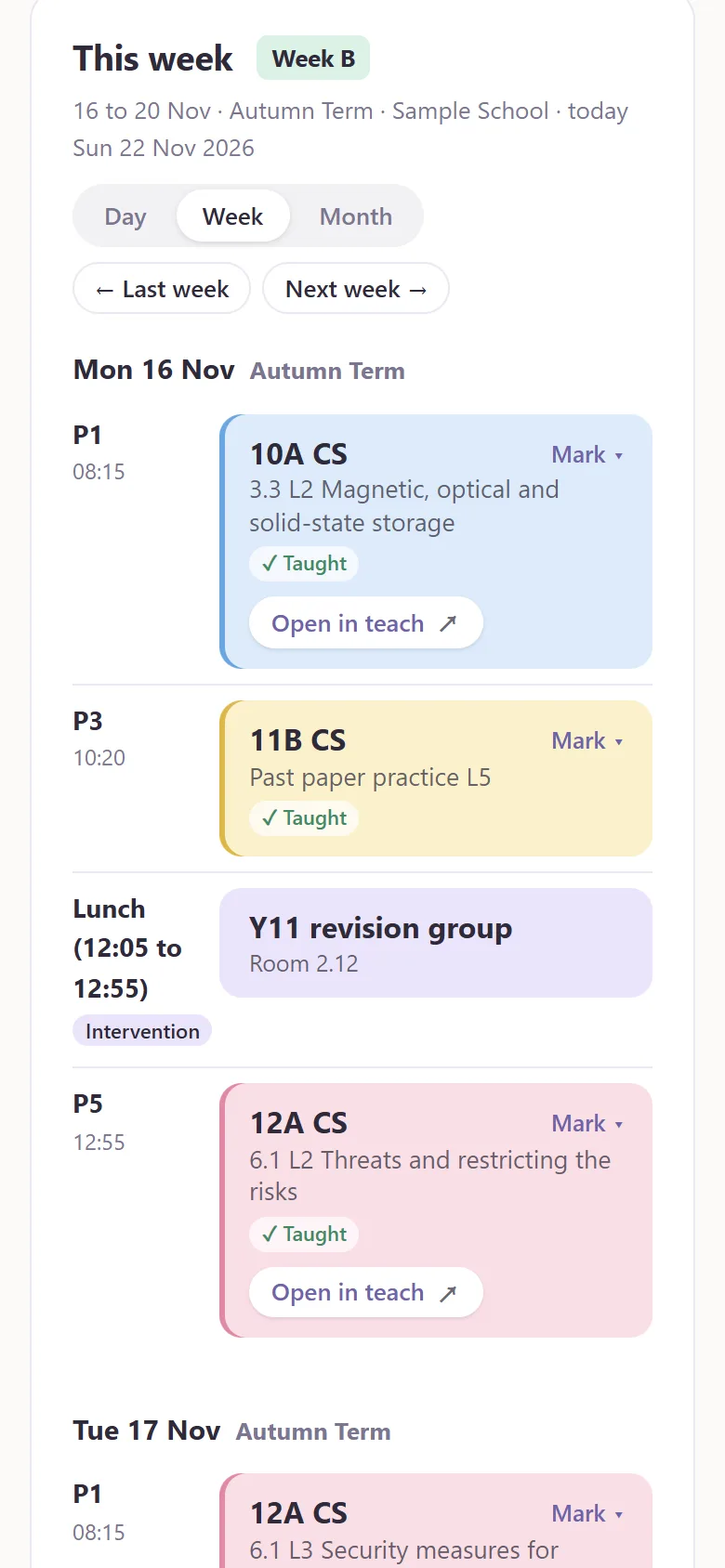
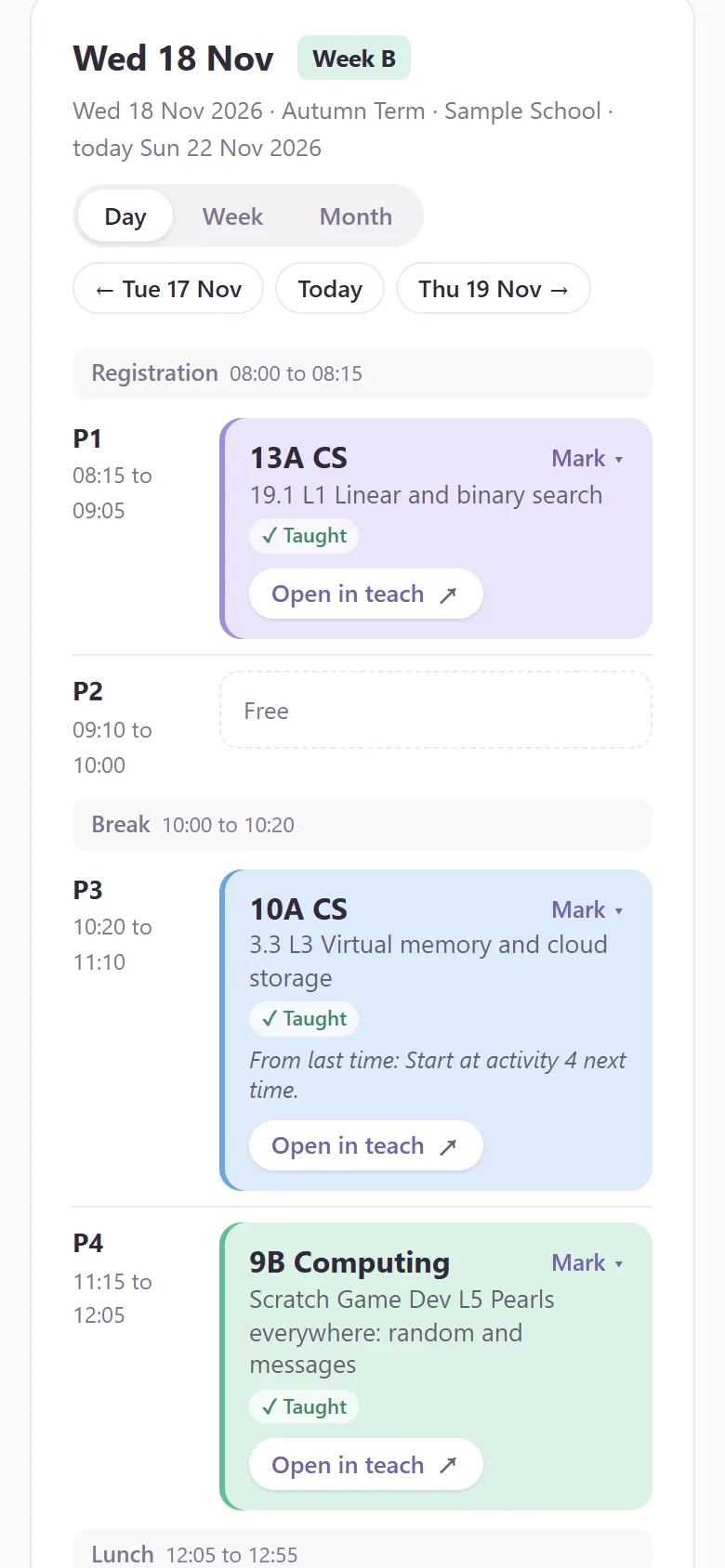

Light or dark
Every page of the planner has a dark look too. Pages are light unless you choose Dark, or Auto to follow your device, in My account.

Everything in flex1 planner
- School calendarTerms, holidays, INSET days and events, entered once.
- Week A and BWorked out across holidays, the way your school counts.
- Year-group eventsMocks or trips that stop lessons for some years only.
- Schemes of workUnits, tests, revision, spare lessons and headings.
- Units from flex1 teachTheir lessons fill in by themselves.
- Deadlines and milestonesA date, or "before the Y11 mocks" from the calendar.
- Timetable importPaste lines or read an Excel or CSV export, with a preview.
- Real datesEvery lesson of every class, on its date and period.
- Deadline checkOn time, or how many lessons short.
- Taught, Didn't finish, LostThe plan moves with what really happened.
- Spare lessonsUsed first when a lesson is lost.
- Notes for next timeShown on the next lesson of the class.
- Duties, meetings and clubsRepeating weekly, in Week A or B, or monthly.
- Duty rotaPasted once by the administrator, for every teacher.
- Day, Week and MonthWith today and now marked.
- Open in teachFrom a lesson in the planner to the lesson in flex1 teach.
Questions
Who can use flex1 planner?
It works from your school's own calendar and timetable, so it opens for teachers whose school address is on the staff list. Sign in and ask for access.
Do I have to type in the school calendar?
No. Your administrator enters it once for the whole school, by pasting the dates from the school calendar.
What if a class falls behind?
Mark the lesson Didn't finish or Lost. Everything after it moves on, a spare lesson is used if there is one, and the deadline check tells you how many lessons you are short.
Can students see the plan?
Not yet. For now the plan is yours; students see their units in flex1 learn.
Count lessons, not weeks
Sign in, or create an account with your school email and ask for access.